There are few ways to view documents in Mevi;
On the deal detail page click on the form card and once on the form summary page, you can view the terms by;
- Tap on the 3-dot action menu on the top right corner to select;
- Review, View Form, View Form (PDF).
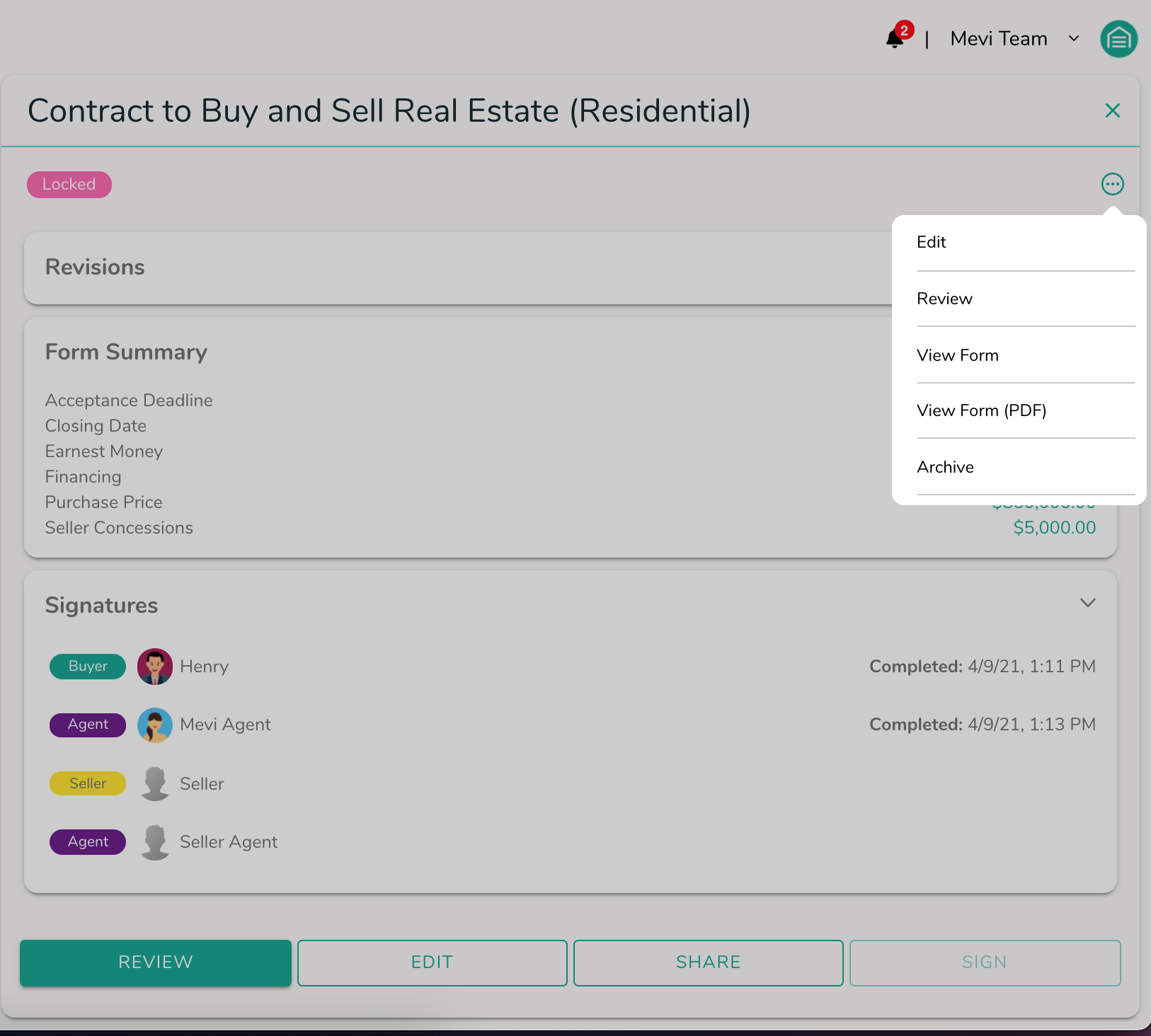
- Or for a quicker way, click on the "Review" button on the form summary page to open the Mevi Smart Review.
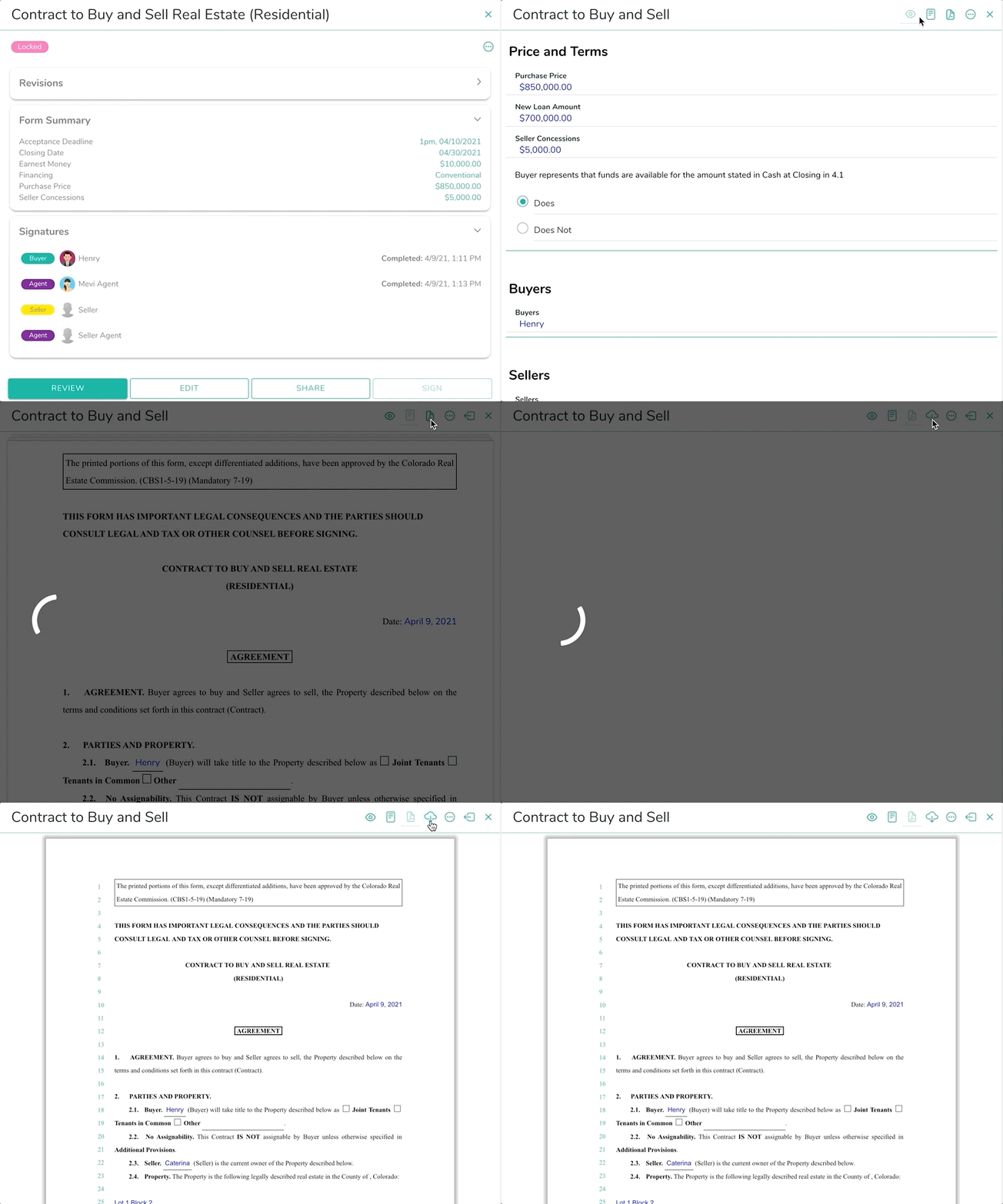
- Toggle between views using the toolbar;
Example of toggling between form view
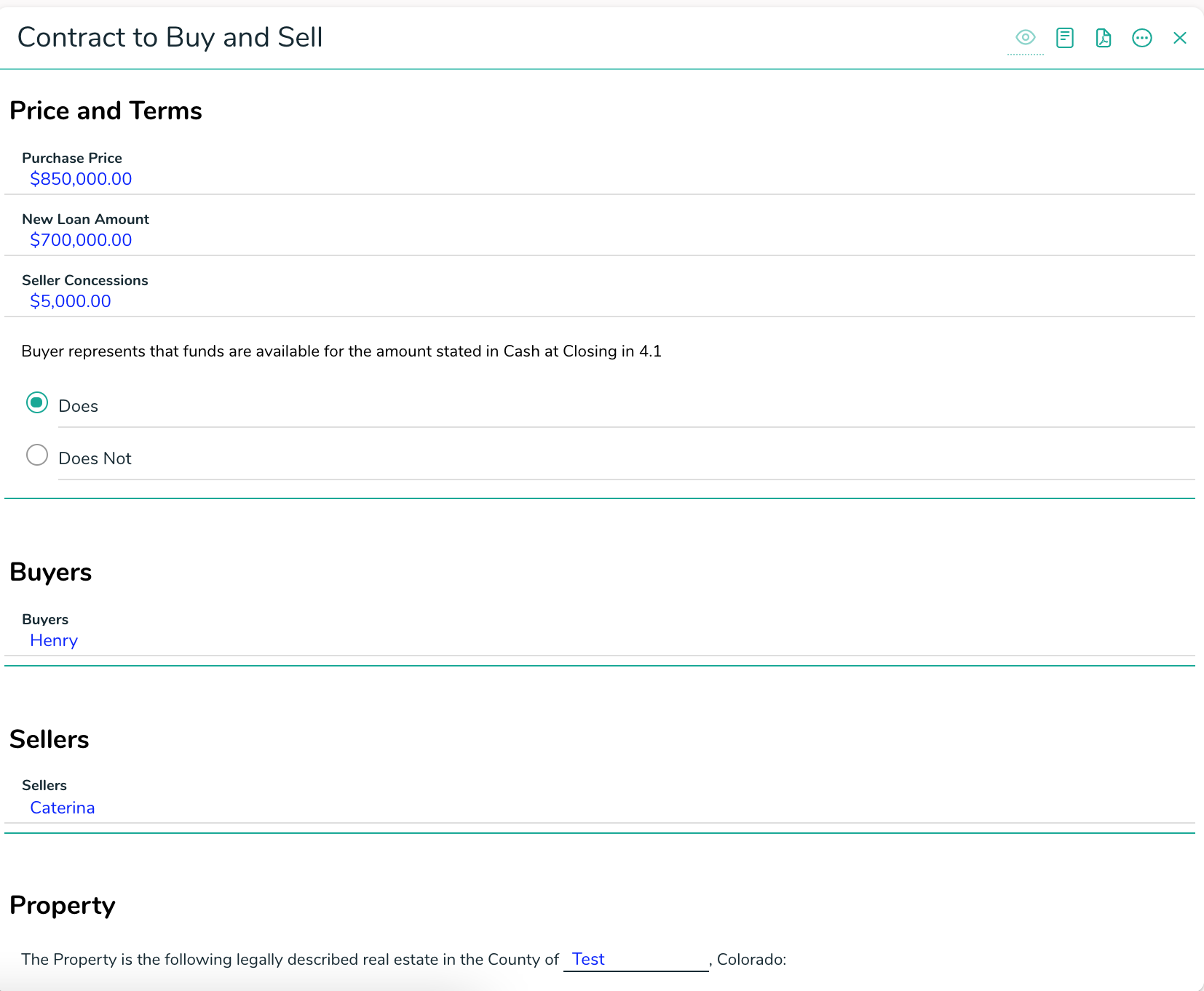
Mevi Smart View
Using Mevi Smart View is great for reading through the terms on any device. The form is broken down into sections to easily read through.
Mevi Smart View Example
Contract View
This is a great way for you to see the full form with all the fields in place without having to download a PDF copy
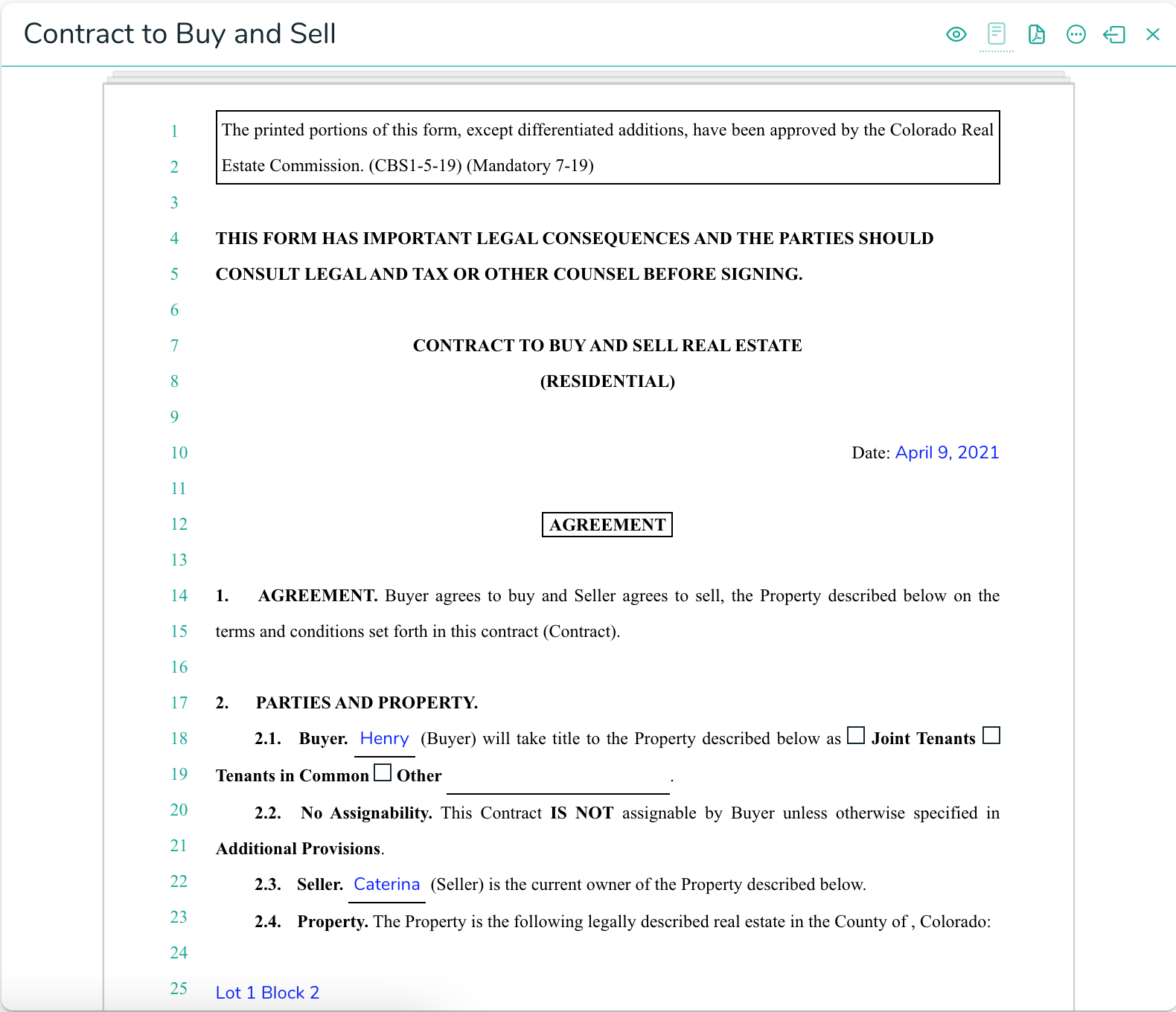
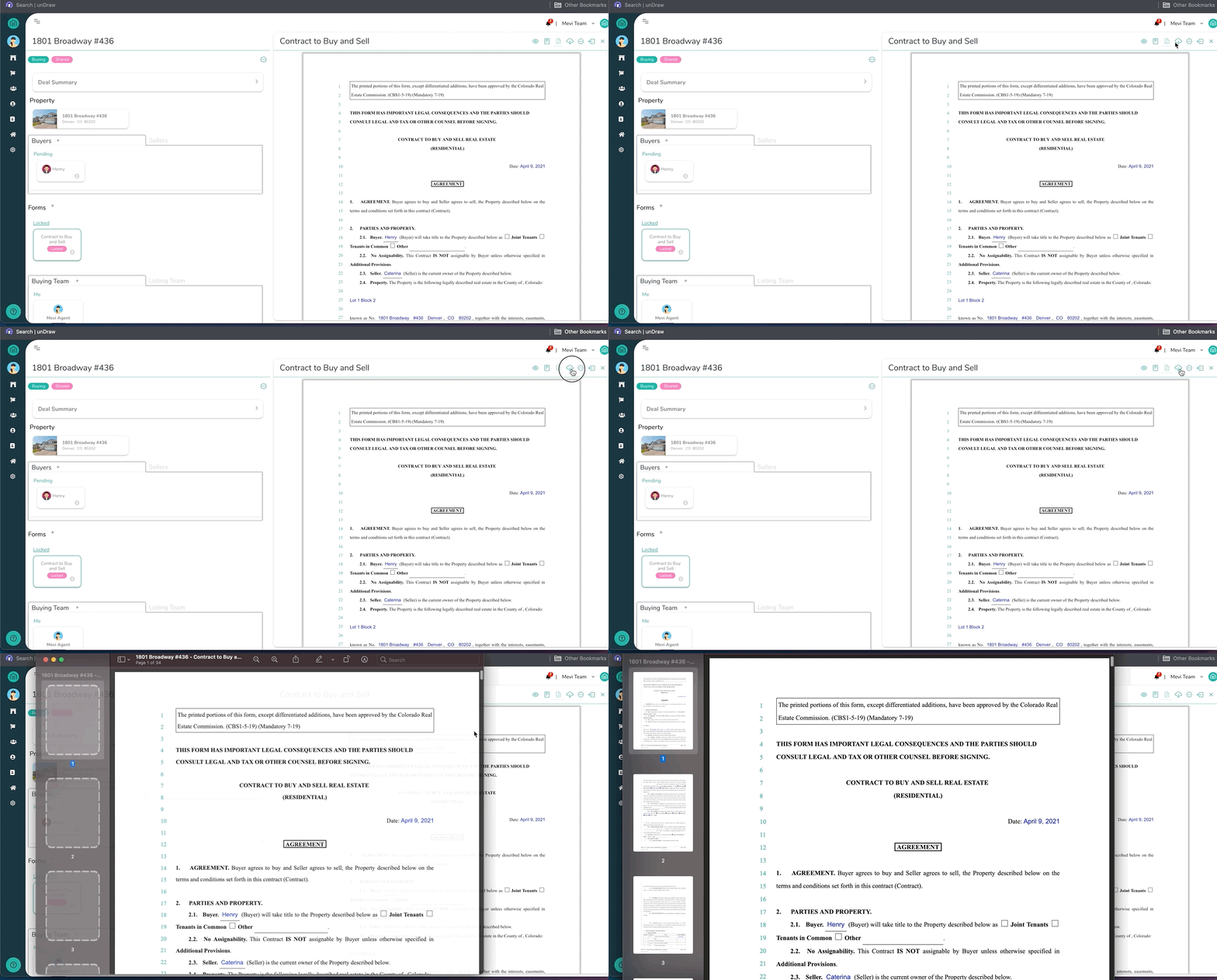
To download the PDF tap on the download icon in the toolbar of the PDF.
Example of downloading a PDF
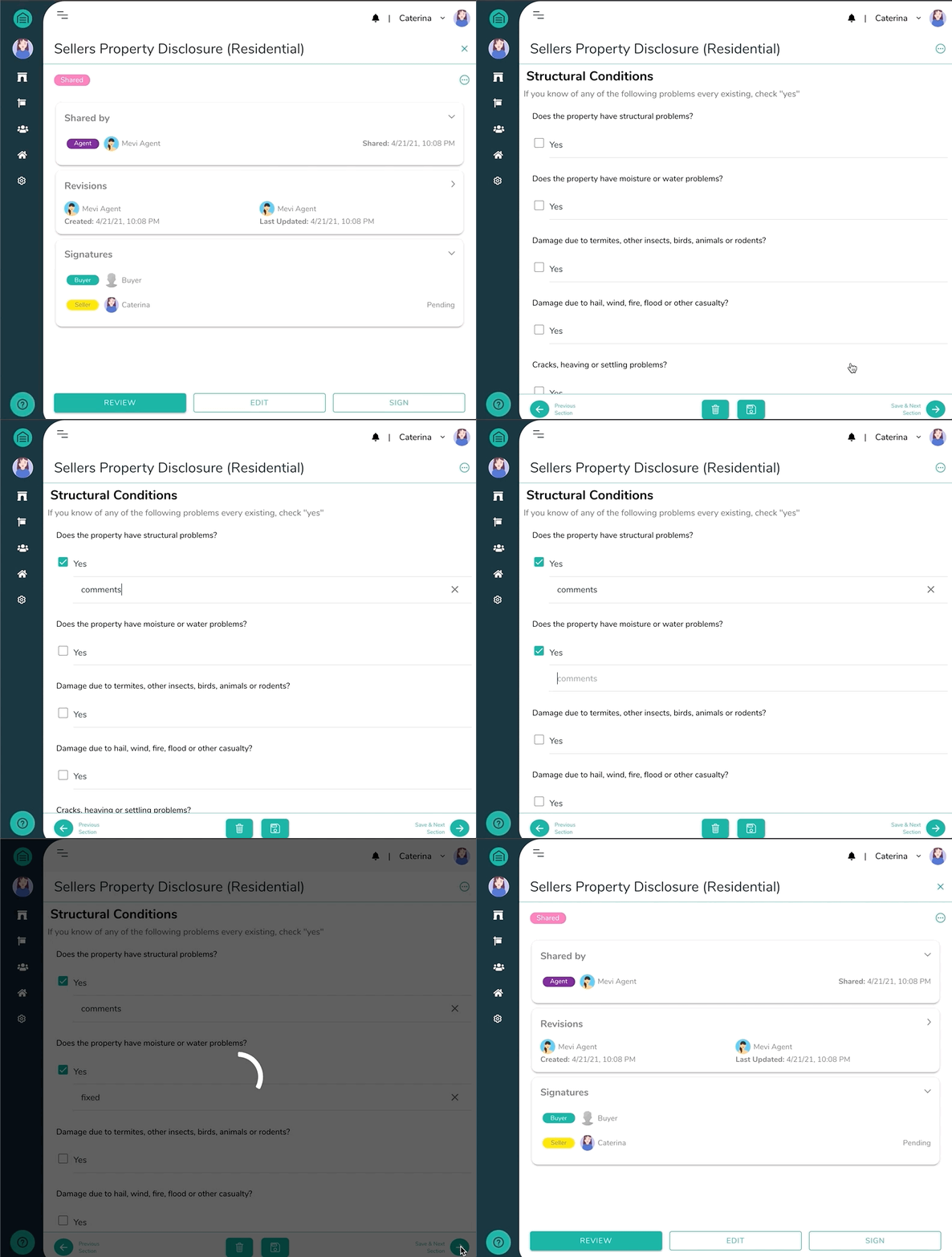
Editing fields on the dislcosures
"Edit + Sign" permission can be given by the creator of the form.
To edit the form follow these steps:
- Select the form where you have edit permissions by tapping on the action menu and tap "Edit" or on the form summary page tapping the "edit" button.
- Make the changes using the dynamic template
- Press Save and then sign!
Example of editing a form